
Eulex Desk works directly inside Microsoft Word. Tracked changes and comments land in the document itself, so you never leave Word. Available on the Pro plan and above.
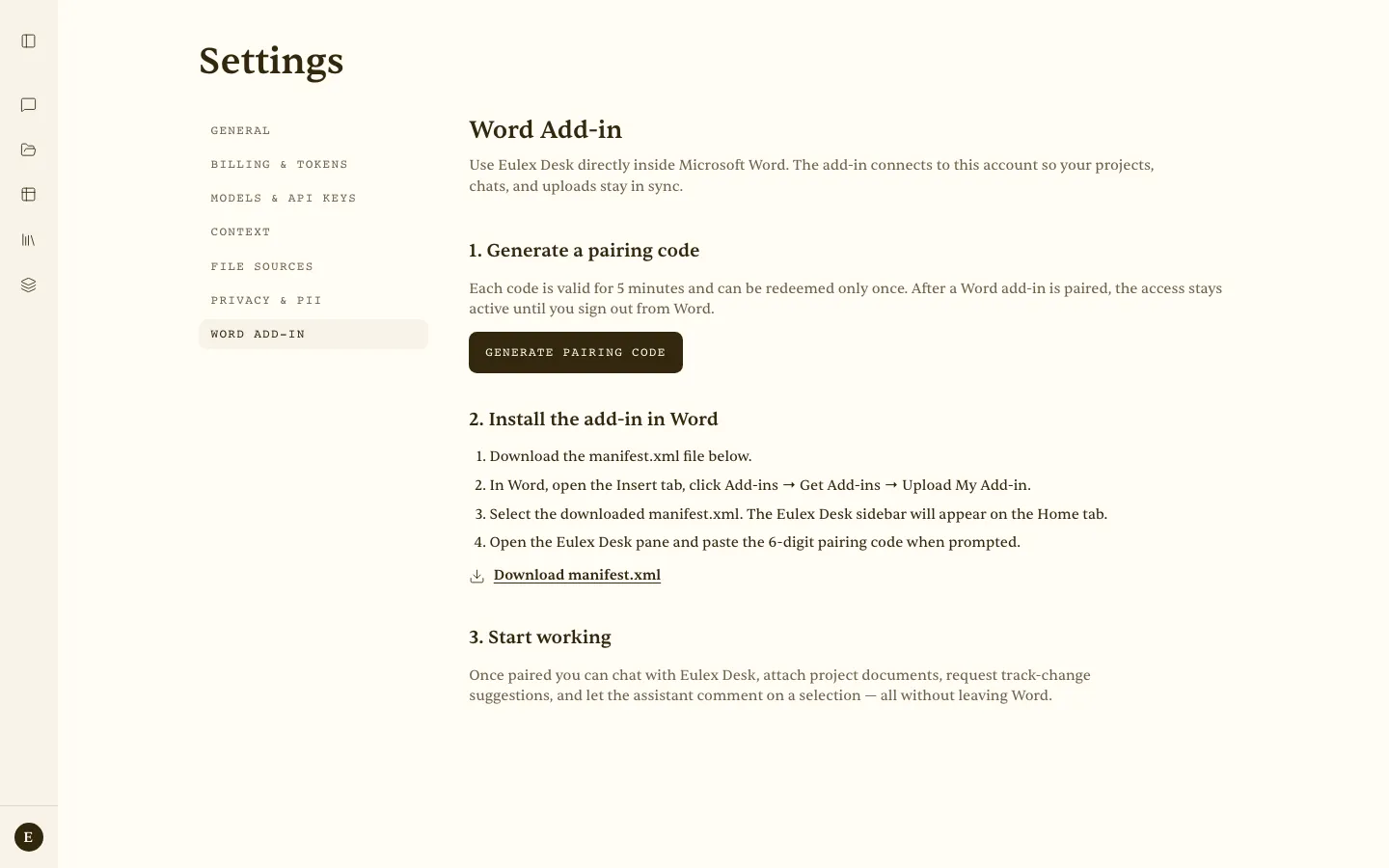 Account → Word add-in — pairing code, manifest download, and the install steps.
Setup (pairing)
- Account → Word add-in — open the Word add-in settings page in Eulex Desk.
- Generate a pairing code — a six-digit code, valid for five minutes and redeemable once. Once paired, the add-in stays connected until you sign out from Word.
- Download
manifest.xml - Install in Word — Insert → Add-ins → Get Add-ins → Upload My Add-in → choose
manifest.xml. The Eulex Desk pane appears on the Home tab. - Paste the code — open the pane, choose Connect to Eulex Desk, and enter the pairing code.
- Start working
Tabs in the Word pane
Chat, Projects, Tabular, Workflows, Track
- Chat — attach the open document, ask a question, or paste a clause for review. Select text in the document to send it as context. Choose whether replies land as tracked changes or comments; tick Changes to include the document’s existing tracked changes as context.
- Projects — browse your projects and their documents, and open a project in the chat so the assistant sees its documents.
- Tabular — a read-only view of tabular reviews; Open in browser ↗ to edit.
- Workflows — the available workflows; Use in chat loads one into the conversation.
- Track — tracked-changes mode Off / All / Mine only, with revision counts and bulk Accept all / Reject all.
Scenario — negotiating in Word — “Suggest a milder wording for the liability clause that caps the amount at the contract value.”
Eulex Desk inserts the suggestion as a tracked change directly in the document. The lawyer accepts it and carries on with the negotiation, with no copy-paste between tools.
